Files stay in your browser
Photos are decoded and created locally with no upload.
Free browser-based HEIC to JPG converter
Convert HEIC to JPG (JPEG) online for free. Turn iPhone photos into compatible JPG files in seconds, with no signup or upload.
HEIC → JPG / JPEG
Add one or more images, then download each converted file to your device.
Files never leave your browser
A private converter
Convert one photo or a batch locally, check every preview, and download JPG copies that work across websites, apps, and older devices.
Photos are decoded and created locally with no upload.
Select multiple photos and download each JPG copy.
JPG works across websites, forms, Windows, and older apps.
Three clear steps
Choose your photos, review the previews, and download the result. JPEG and JPG use the same image format; this page creates .jpg files for broad compatibility.
Select HEIC or HEIF photos, or drag them into the converter.
Review each thumbnail for missing images or incorrect orientation.
Download each JPG copy and check it before uploading elsewhere.
Compatibility output
Keep the original. Share the copy.
A converted JPG is ready for profile uploads, receipt submissions, email attachments, and documents. Check its dimensions and clarity first, then compress a copy only when the destination has a size limit.
Convert your HEIC photos to JPG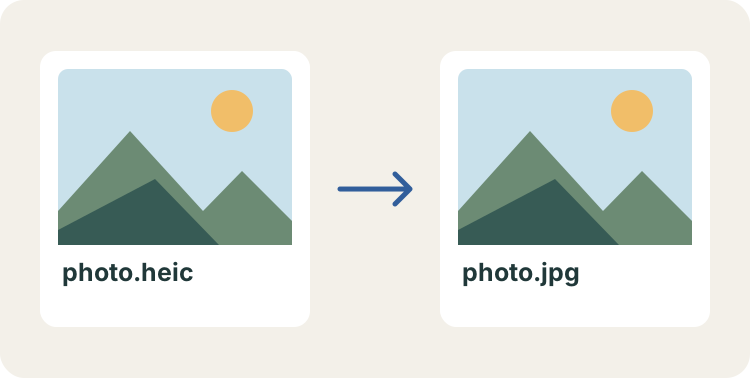
A practical guide
HEIC saves space on iPhone, but some websites, forms, Windows apps, and older image editors still expect JPG. Converting HEIC files to JPEG (.jpg) creates a practical compatibility copy while leaving the original photo unchanged.
JPG is a lossy format designed for broad sharing. Keep the original HEIC for your photo library and use the JPG copy when a website, document, or recipient needs a format that opens almost everywhere.
Results and use cases
JPG uses lossy compression and can be larger or smaller than HEIC, depending on the image. This converter re-encodes to JPEG at quality 0.94 and keeps pixel dimensions. It does not guarantee the original color profile or metadata.
For a form or website upload, the default JPG is usually the practical choice: it keeps enough detail for an everyday photo while opening in nearly every browser and operating system. If a destination has a strict size limit, resize or compress a copy after conversion and keep the original HEIC as your archival version.
Conversion does not improve a blurred or low-resolution source. Review a representative output at 100% zoom, especially when the image contains small text, receipts, or screenshots. If color or orientation matters, compare the JPG with the original before sending it and keep the source until the upload is accepted.
Web forms often reject HEIC with an unsupported-format message even when they accept ordinary image uploads. A JPG copy meets the expected file type and can be selected from the browser's download folder without changing the original in Photos.
A source around 2 MB does not imply a 2 MB download. As an illustration, an output of 4 MB would be twice that source size; it would not by itself mean anything went wrong. This is an arithmetic example, not a measured estimate for your photo. Fine textures, foliage, noise, and high resolution can all increase the number of bytes needed by the new encoding. The tool uses a fixed JPEG quality parameter of 0.94, with no selectable quality tiers. That parameter is an encoder setting, not a promise to retain 94 percent of the original information. Try one representative image and inspect the actual downloaded size before preparing a large set. If a portal demands less than 2 MB, use a separate resize or compression step on the copy, then check whether small lettering is still readable.
The decoded image is drawn to a canvas at its natural pixel width and height; the page does not offer a resize control. A portrait photo should still be portrait, but verify the visual orientation because camera orientation tags and displayed dimensions can differ. The canvas export does not deliberately copy the original EXIF fields, including capture time and GPS location. A download date shown in your file manager is not proof that the camera date survived. Keep the source for photo-library sorting, location records, or professional editing. Also inspect skin tones and bright highlights when appearance matters: preserving the pixel count does not guarantee identical color rendering across viewers.
Each result keeps the source basename and replaces the extension with .jpg: IMG_2048.HEIC becomes IMG_2048.jpg. If your download folder already contains that name, the browser may append a number. Sort the thumbnails by filename or move them with the arrows before downloading; this controls the order in which downloads are requested, not a shared page sequence. Results remain individual images, and the browser can ask permission for multiple downloads. Start with a handful on a phone, and reduce the batch if previews stop responding. There is no guaranteed file-count limit because decoded pixel dimensions and available device memory matter more than the compressed total.
Select the newly downloaded file rather than the original camera image. Renaming .heic to .jpg changes only the label, so it cannot satisfy a server that checks the actual image bytes. A genuine JPEG copy resolves that particular type mismatch, but acceptance still depends on the destination’s size, dimension, and account rules. Check its allowed extensions, upload one image first, and read the next error literally: “file too large” calls for compression, while “dimensions too small” needs a higher-resolution source.
Good to know
Yes. JPEG and JPG are the same image format; only the filename extension differs. This converter creates .jpg compatibility copies.
Yes. Select multiple HEIC or HEIF photos, review the thumbnails, and download each converted JPG.
No. HEIC decoding and JPG creation happen in your browser. Your files stay on your device.
No. Conversion creates a new JPG copy and does not modify the original HEIC file.
JPG is supported by virtually all modern operating systems, browsers, forms, and image editors.
Ready when you are